Posts

How to add the backup PST file as a secondary folder in Outlook
Image
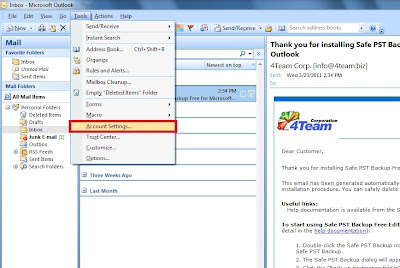
Below are step by step instructions on how to add the backup PST file as a secondary folder in Outlook. To open your Outlook account settings, open Outlook -> Tools -> Account Settings... In the opened window select the Data Files tab and click Add…. A new window will ask you to choose a type of storage. Keep the default one and press OK. Choose a location where your backup file is saved. Click the PST file and press OK. In the Name field enter a name for your PST file to be displayed in Outlook and press OK. Your added data (PST) file will appear in the Data Files window. Press the Close button. Your backup will be added to the Outlook folder list displaying all your backed up folders..
How to back up Outlook PST file using Safe PST Backup

Image
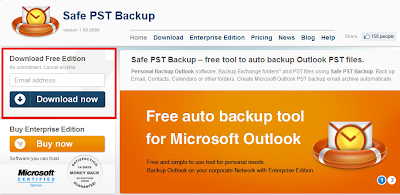
Safe PST Backup performs PST file synchronization one way only – from your personal computer to a selected backup location. This article explains how to back up your PST file using our free Safe PST Backup version. You can download it at: http://www.safepstbackup.com/ Enter your email address and click the Download now button: Double click on the program’s icon to open the main dialog: Right-click – opens the pop-up menu as shown on the following screen: Enter / Click the destination folder path to select a folder where the backed up data will be placed: The destination folder path will be displayed. Note: you will be able to change the destination folder by clicking on the path. Click the “Start Backup” button to start the backup process Click the “Stop Backup” button if you need to stop the process The last backup information will be displayed along with the schedule of the next backup. If you back up PST files manually, your information dialog will look like this: You can schedule y...

New Outlook Backup Solution

4Team is proud to announce the release of our long awaited Outlook backup solution . It comes in two different versions: Free version providing simple functionality and intended for personal use and Enterprise Version with far more complex functionality providing backup over the network and more for corporate and advanced users. Backup and archive email and other data to the native Microsoft Outlook PST file format. Restore selected Outlook PST files at any moment using built-in Outlook features or by replacing old corrupted PST files. Schedule and backup Outlook at specified time intervals or backup selected PST files manually. Most of our competitors software are backing up Outlook by simply copying PST files or making their shadow copies. If Microsoft Outlook is open while this takes place, this leads to many problems. PST files are copied without latest changes because Outlook locks up the PST file or because the backup software waits for Outlook to close. Shadow copies of PST file...

Big news! Our First Application for iPhone and iPad is Finally Released

Remove duplicates from your iPhone / iPad Contacts in couple clicks, restore accidentally removed contacts. Find us on Apple App store . Try it out and tell us what you think!

Share Outlook Folders using 4Team Corporation product – ShareO

Image
ShareO can be used to share default Outlook folders such as Inbox, Contacts, Tasks, Calendars, Notes, etc. and custom created folders. You can also share any documents and files. Below are step by step instructions on how to share Outlook Contacts folder using ShareO. • Presumably, ShareO is already installed on all your computers that will participate in the sharing process. If not, please download and install it using this link: http://shareo.4team.biz/try_shareo.asp o Please use the e-mail address to which we will send you an automatic e-mail with the installation instructions triggered by pressing the DOWNLOAD button. • Please note that MS Outlook needs to be closed when you install ShareO. • When ShareO is installed on all PCs, please perform the following steps to initiate the Contacts sharing: o Open MS Outlook. o Select Inbox folder in the folder list. o To start sharing, click the “Share…” button on the upper menu bar of Outlook, the “Share” command displayed within th...

Share Outlook Calendars using 4Team Corporation product – ShareCalendar.

Image
Below are step by step instructions on how to share Outlook Calendars using ShareCalendar. Presumably, ShareCalendar is already installed on all your computers that will participate in the sharing process. If not, please download and install it using this link: http://sharecalendar.4team.biz/trytrial_sharecalendar.asp Please use the e-mail address to which we will send you an automatic e-mail with the installation instructions triggered by pressing the DOWNLOAD button. Please note that Outlook needs to be closed when you install ShareCalendar. When ShareCalendar is installed on all PCs, please perform the following steps to initiate the Calendar sharing: Open Outlook. Select Calendar folder in the folder list. To start sharing, click the “Share…” button on the upper menu bar of Outlook, the “Share” command displayed within the ShareCalendar drop-down menu or after right –clicking the Calendar folder. In the displayed window press the Add… button, and add the e-mail address of...