Big news! Our First Application for iPhone and iPad is Finally Released
Get link
Facebook
X
Pinterest
Email
Other Apps
Remove duplicates from your iPhone / iPad Contacts in couple clicks, restore accidentally removed contacts. Find us on Apple App store. Try it out and tell us what you think!
Recently all Google Calendar Sync Free app users received an email from Google, that starting on August 1st, 2014 this app will no longer sync events between Google Calendar and Microsoft Outlook Calendar. “Important Announcement about Google Calendar Sync Almost two years ago, we announced that we ended support for Google Calendar Sync. Starting on August 1, 2014, this app will no longer sync events between your Google Calendar and Microsoft Outlook Calendar. You can continue to access all of your Google Calendar events at calendar.google.com or on your mobile devices. Follow these instructions to uninstall Google Calendar Sync from your computer. - The Calendar Team” There is no need to get frustrated or panic! Google Calendar Sync Free app users still have 15 days to find an alternative for Google Outlook Sync utility. 4Team Corporation offers you a tool for syncing your Google and Outlook Calendar – Sync2 . Sync2 is a free-to-try desktop application. With Sync2 you can...
The following steps show you how to simply restore Outlook data from a selected backup file on a new or existing computer. New Safe PST Backup feature allows creating new PST files after each backup. This way you can restore Outlook data from the selected backup history point. Locate a backup PST file(s) on the computer and use Outlook import/export wizard to restore the data. In this case, the backup files are located in User Documents->Outlook Files->Back up folder. To start the restore process, launch Outlook. Click File->Open and select "Import". The Import and Export Wizard will pop up showing the list of actions. Select “Import from another program or file” and click “Next”. In the next step you have to choose a file type to import. Select “Outlook data file (.pst)". In the new window, you have to choose the backup file to import into Outlook. Click "Browse" and select the location where ...
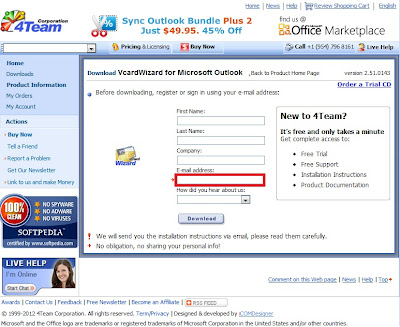
vCard Wizard allows you to import vCard format files to the chosen Microsoft Outlook Contact Folder and Export any Contacts Folder to the vCard format. Below are step by step instructions on how to import/export contacts using vCard Wizard program. Please use the following link to download and install vCard Wizard on your computer, if you have not done that already: http://www.vcardwizard.com/try_vcardwizard.asp Please use the e-mail address to which we will send you an automatic e-mail with the installation instructions triggered by pressing the DOWNLOAD button. When vCard Wizard is installed on PC, please perform the following steps: Double-click on vCarWizard to start the program and Outlook will pop-up. If you wish to export your Outlook contacts to vCard format file please select 'Export contacts to Vcard' New window will show up with the following parameters: 'Export contacts from folder:' allows you to select a calendar fo...

Comments
Post a Comment